info@zinavo.com
 +91-77602 45945


Introduction
One of the best ways to start building your first website is with WordPress website development. WordPress powers over 40% of all websites on the internet, making it the most popular and beginner-friendly content management system (CMS). Whether you’re creating a personal blog, business website or online store, WordPress offers everything you need to design, manage and scale your site efficiently.
In this step-by-step beginner tutorial, we’ll teach you through the entire process of WordPress website development from setup to customization and launch.
What Is WordPress and Why Should You Use It?
WordPress is a free open-source CMS(content management system) that allows anyone to build professional websites without deep coding knowledge. It comes in two versions:
- WordPress.com – A hosted solution suitable for beginners who want a quick setup.
- WordPress.org – Self-hosting version offering full control, customization and scalability.
The Best Reasons to Use WordPress for Website Development
- User-Friendly Interface: The website can be managed by anyone, even those who are not technically experienced.
- Flexible and Customizable: It is possible to customize thousands of themes and plugins.
- SEO-Friendly: WordPress is optimized for search engines, helping your site rank better.
- Cost-Effective: Most features are free or affordable.
- Secure and Scalable: Regular updates and plugins maintain security and performance.
WordPress website development provides the flexibility and power to create a professional online presence for any business.
Step 1: Preparing for Development
Before you build, ask yourself:
- What’s the goal of your site (blog, business, portfolio, shop)?
- Who is your audience?
- What core content will you create (pages, posts, media)?
Set clear objectives and structure to ensure your website attracts and serves the right audience.
Step 2: Choosing a domain name and hosting provider
The first step in WordPress website development is securing a domain and hosting plan.
1. Domain Name
Your domain is your website’s address (e.g., www.zinavo.com).A domain name should be memorable, easy to spell and relevant to your business or brand. It plays a crucial role in establishing your online identity and making it easier for users to find you. Choose a domain name that reflects your objectives and appeals to your target audience.
Choose a name that is:
- Easy to remember
- Relevant to your business
- Short and keyword-friendly
2. Web Hosting
The files of your website are stored online in a hosting account. Consider the needs of your website when selecting a hosting plan. If you’re just starting out, a shared hosting plan is cost-effective and sufficient for low to moderate traffic. However, if you anticipate high traffic or need more resources a VPS or dedicated hosting plan may be a better fit, offering greater performance and control.
Choose a quality hosting provider that offers
- 99.9% uptime guarantee
- Fast loading speeds
- 24/7 technical support
- One-click WordPress installation
Popular WordPress hosting providers include Bluehost, SiteGround, Hostinger and WP Engine.
Once you have your domain and hosting set up, you’re ready to install WordPress.
Step 2: Install WordPress
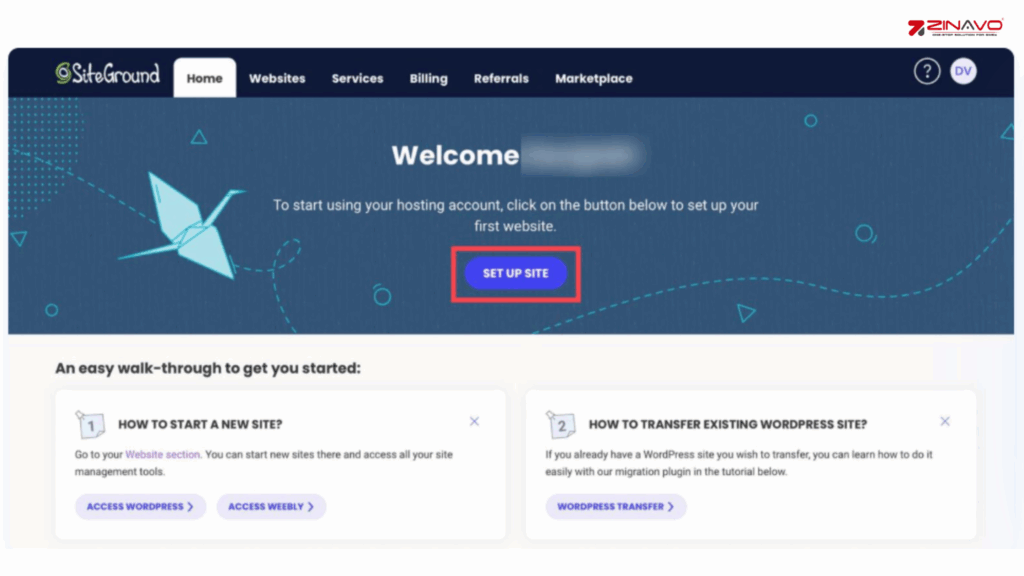
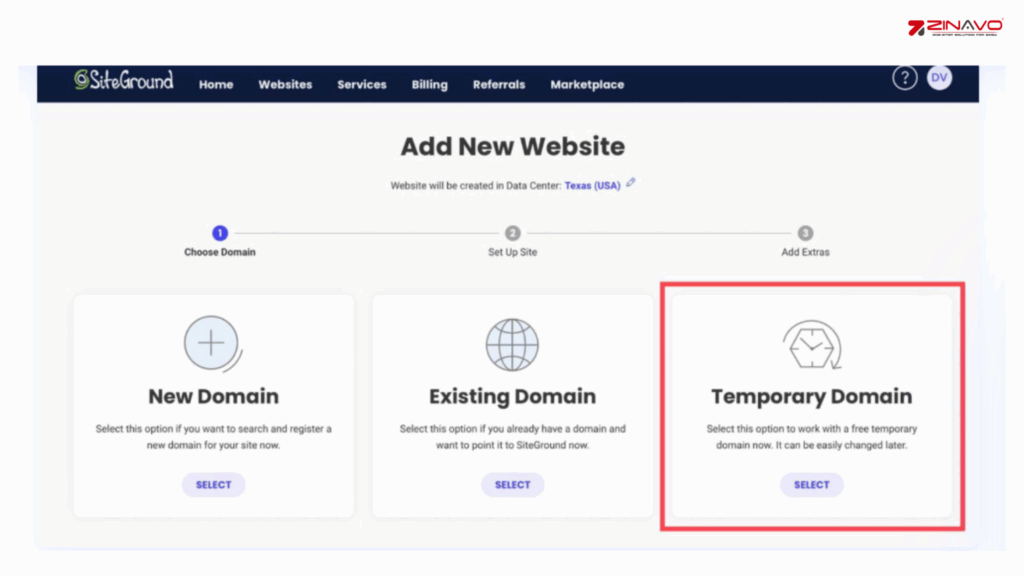
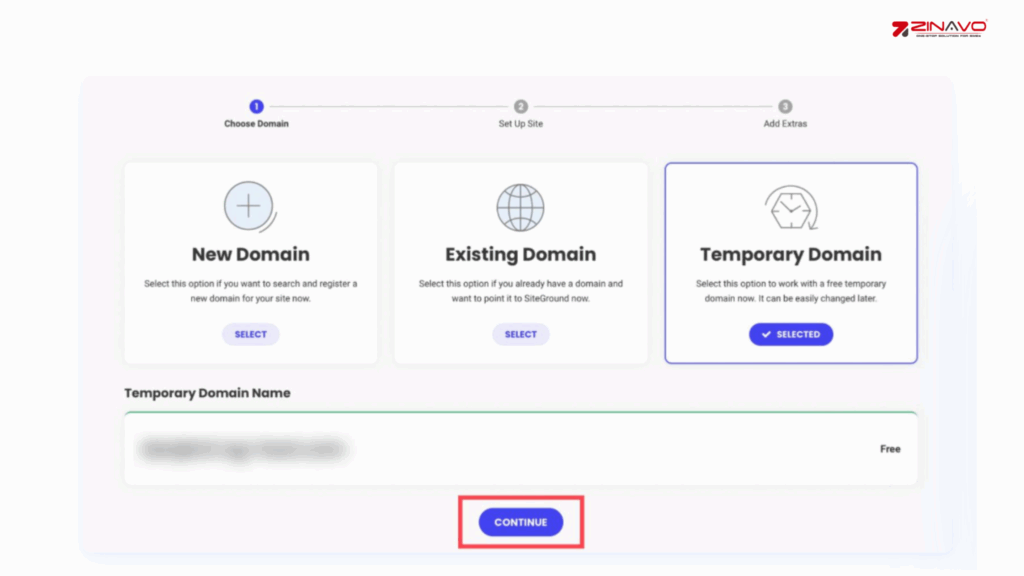
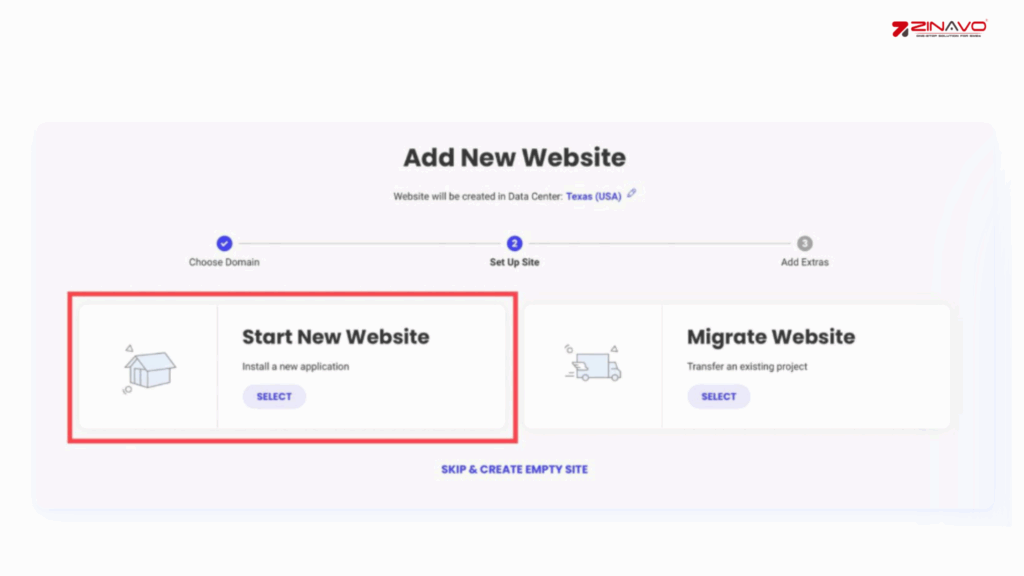
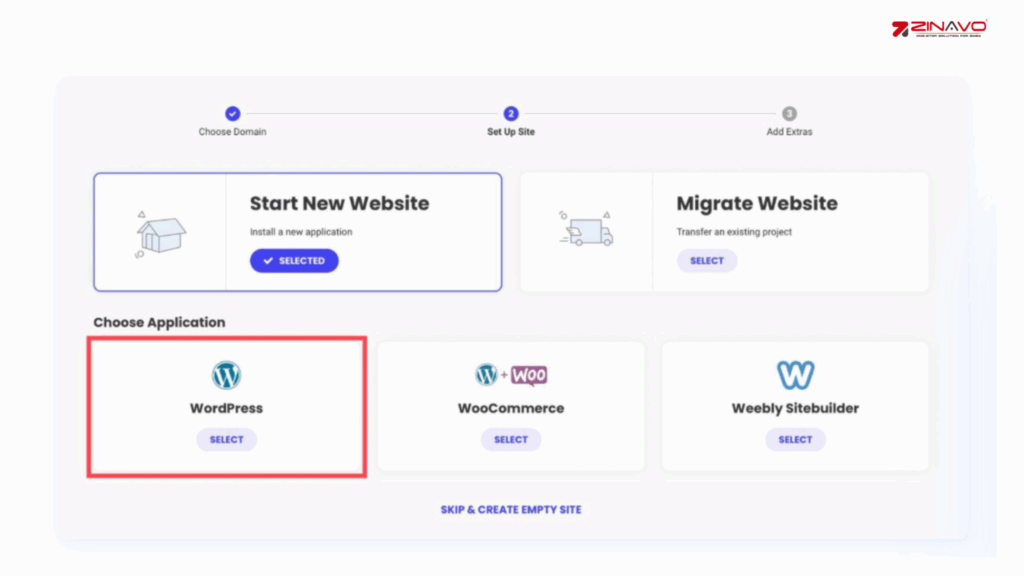
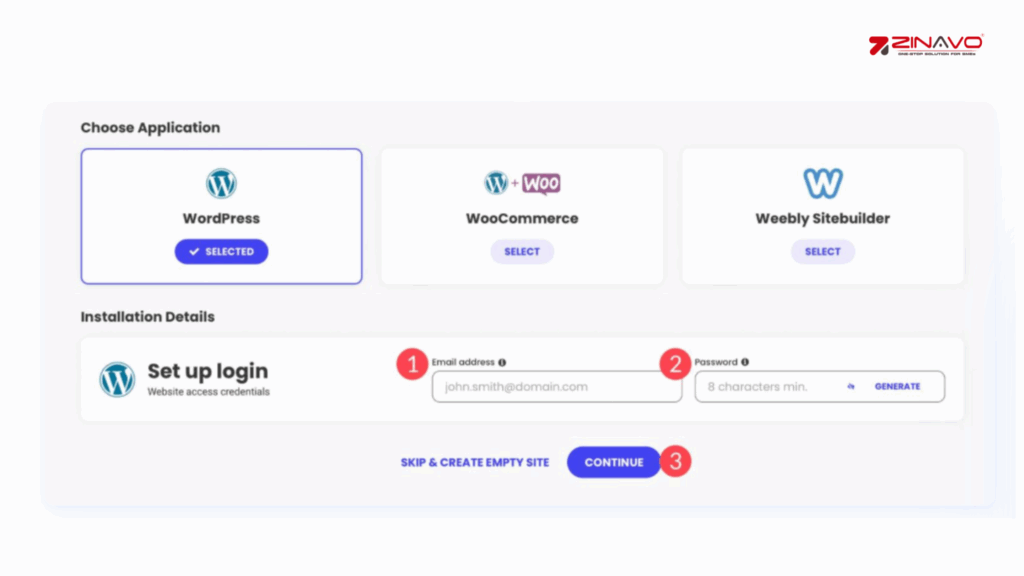
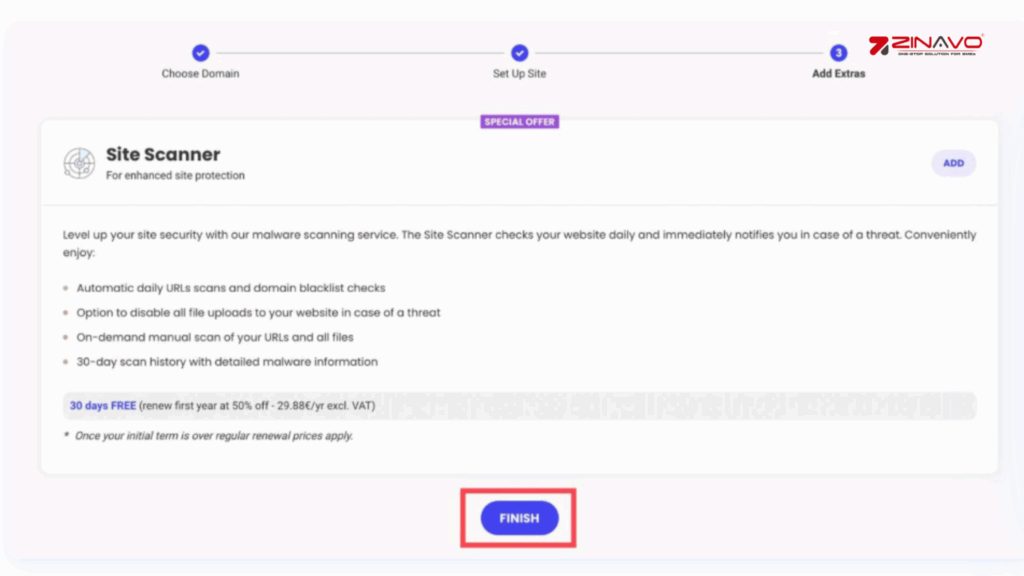
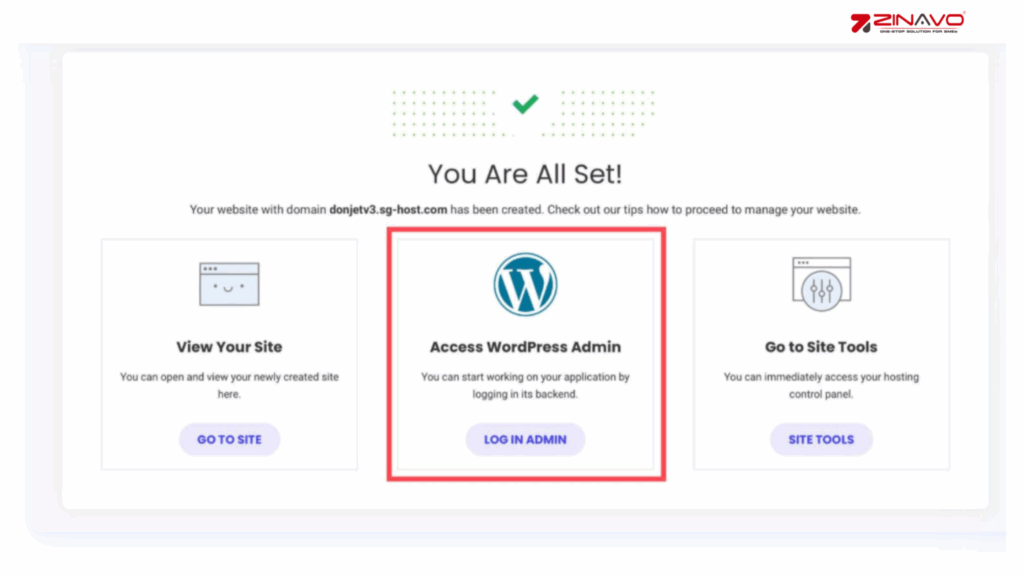
Most hosting providers provide a one-click setup. Simply log in to your hosting account, navigate to the control panel and look for the WordPress icon or installer. Click on it and follow the prompts to choose your domain, set up your site title and create your WordPress login information. The WordPress platform will be installed in minutes and you’ll be able to customize it as you like.
- Log in to your hosting dashboard.
- Find the “Install WordPress” option.
- Select your domain and click “Install.”
- Set your website title, username, and password.
Now, you can start building your website step by step.
Install WordPress via SiteGround
Step 3: Choose a Theme for Your Website
A WordPress theme determines your website’s layout, color scheme and overall appearance.
Consider beginner-friendly themes such as Astra, OceanWP or Neve. These themes are highly customizable, responsive and optimized for performance, making them ideal for creating a visually appealing and functional website. Additionally, they offer extensive documentation and support to guide you through the customization process.
To choose a theme:
- Go to your WordPress dashboard.
- Navigate to Appearance → Themes → Add New
- Browse or search for free and premium themes.
- Click Install and then Activate.
Popular beginner-friendly themes:
- Astra – Lightweight and fast.
- OceanWP – Great for multipurpose websites.
- GeneratePress – SEO-optimized and flexible.
- Divi – Drag-and-drop design freedom.
When developing a WordPress website, pick a responsive theme that looks great on all devices.
Step 4: Install Essential Plugins
WordPress plugins provide a range of functionality, ranging from contact forms to search engine optimization.
Here are some must-have plugins for WordPress website development:
- Yoast SEO or Rank Math: Improve your site’s SEO.
- Elementor: Drag-and-drop page builder.
- WooCommerce: For building online stores.
- WPForms: Create custom contact forms easily.
- UpdraftPlus: Backup and restore your website.
- Wordfence Security: Protect your site from malware and attacks.
How to Install and Activate Plugins in WordPress
Select the “Plugins” menu option from your WordPress dashboard. Then, select “Add New” and use the search bar to find the desired plugin. Once found, click “Install Now” and then “Activate” to enable it on your website.
Here’s how to install plugins:
- Go to Plugins → Add New.
- Search for your desired plugin.
- Click Install Now and then Activate.
Plugins extend WordPress functionality, helping you design, optimize and manage your website effortlessly.
Step 5: Customize Your Website
The customization process allows you to showcase your creativity. WordPress makes it simple to personalize every aspect of your site.
Enhance Your WordPress Site with Advanced Customization Tools:
Consider using tools like Advanced Custom Fields for creating custom fields and layouts or Beaver Builder for advanced page building capabilities. The Customizer Custom Controls can help you add unique styling options directly within the WordPress Customizer. These tools give you more control over your site’s design and functionality, enabling you to create a truly unique website.
Customize the Appearance
- Go to Appearance → Customize.
- Edit your site title, tagline, logo and colors.
- Set homepage and blog page layouts.
Add Key Pages
For a complete website, include:
- Home Page: Overview of your brand or services.
- About Us: Your story, mission and values.
- Services/Products: What you offer.
- Blog: Share insights, updates and SEO content.
- Contact: Add a form or map for visitors to reach you.
Create Menus
Go to Appearance → Menus and add links to your key pages for easy navigation.
Customizing your website layout and design is one of the most enjoyable parts of WordPress website development allowing you to build a unique brand identity.
Step 6: Optimize Your Website for SEO
Search engine optimization (SEO) is essential for attracting visitors. WordPress is naturally SEO-friendly but you can improve it further with these steps:
- Install an SEO plugin like Yoast SEO or Rank Math.
- Use relevant keywords (like “WordPress website development”) naturally in titles and content.
- Create SEO-friendly URLs (example: www.zinavo.com/wordpress-website-development).
- Add meta titles and descriptions for each page.
- Use optimized images to improve loading speed.
- Ensure mobile responsiveness for better ranking.
Optimizing from the start ensures your WordPress website development project achieves real traffic and business growth.
Step 7: Test and Launch Your Website
It is important to check the functionality of your site before going live. Avoid user frustration by checking all links and forms. Maintain professionalism by checking for spelling and grammar mistakes. Test your site thoroughly with a staging environment without affecting your live website
Checklist Before Launching
- Test all links and buttons.
- Check mobile responsiveness.
- Verify contact forms are working.
- Run a speed test using GTmetrix or Google PageSpeed Insights.
- Ensure all SEO settings are configured.
Once everything looks good, hit Publish. Your WordPress website is live.
Step 8: Maintain and Update Regularly
Once your WordPress website is launched, your development journey doesn’t end. The performance and security of your computer are assured with regular maintenance.
Key maintenance tips:
- Update WordPress core, themes and plugins regularly.
- Take weekly backups.
- Monitor website speed and uptime.
- Use Google Analytics for tracking visitors.
- Keep your content fresh and SEO-optimized.
A well-maintained website builds loyalty and keeps users coming back.
Conclusion
Developing a WordPress website may seem difficult but with the right approach, you can do it faster than you think. WordPress flexibility, power and scalability make it a great choice for beginner and professional websites equally.
A successful online presence begins with choosing the right domain and theme then customizing and optimizing it for search engines.
Our Website Development Company in Bangalore can build your dream WordPress site with powerful, SEO-friendly features. WordPress websites developed by our experienced developers drive business growth, engagement and performance.